One key per input source. No cycling. No guessing.
CmdIME gives every input source on your Mac its own key.
Interactive preview: press a key or tap a cap to play a sample. Your Mac's input source is not changed.
Install
Free and open source (MIT). Requires macOS 13 or later on Apple silicon (Intel Macs are not supported). Preview build: signed, not notarized.
Paste into Terminal
curl -fsSL https://raw.githubusercontent.com/ShunmeiCho/cmd-ime/main/script/install.sh | bash- Run the command in Terminal.
- Allow Accessibility and Input Monitoring in System Settings > Privacy & Security.
- Follow the in-app Setup guide to your first switch.
What the installer does
The installer downloads the latest release, verifies it against the published SHA-256, installs CmdIME.app in /Applications, links keyboardctl and opens the app. Later updates install from inside the app with Update Now.
Why not Control+Space
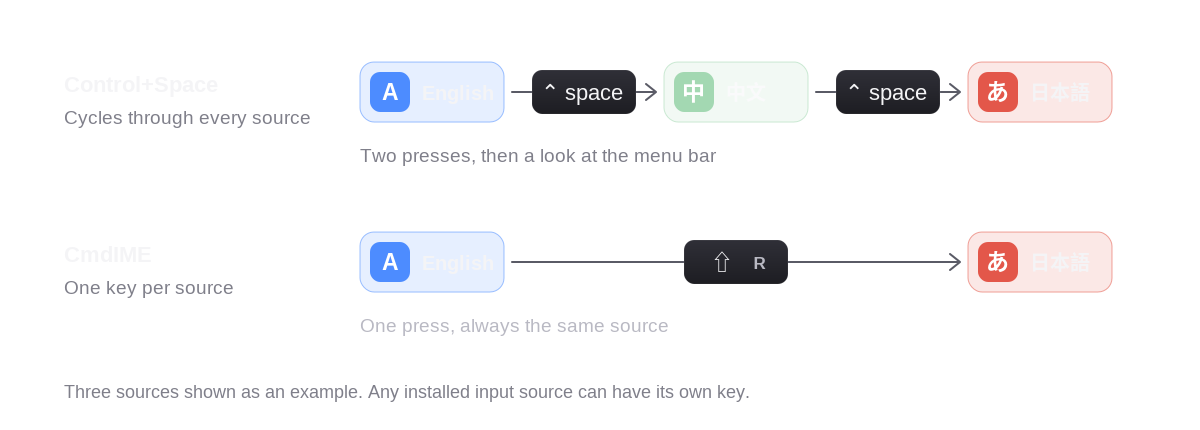
- It cycles. With three or more input sources you look at the menu bar to see where you landed. With CmdIME each key always lands on the same source.
- Even with two input sources, it toggles. Control+Space flips to the other source, so you have to know which one you are in before you press. A CmdIME key always means the same source: press Left Command and you are in English, wherever you were before.
- One thumb instead of a chord. Left and Right Command sit under your thumbs and take one tap; Control+Space is two keys pressed together.
- Taps and shortcuts stay apart. Command+C, Command+Tab and other chords never count as a Command tap, so the keys you already use keep working.
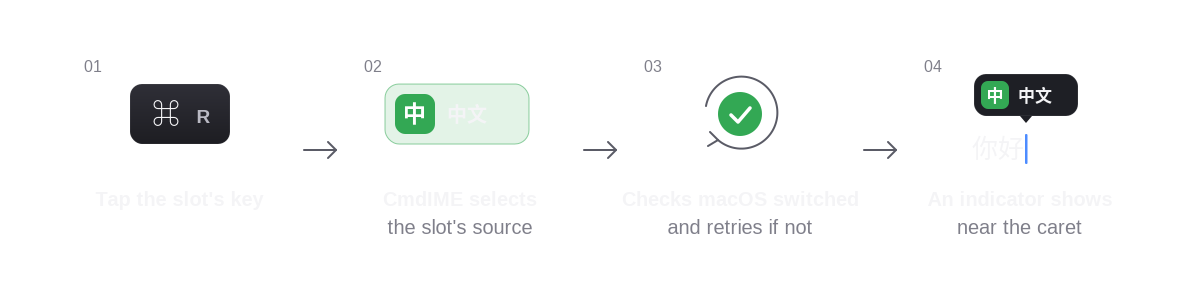
How a switch works
Inside CmdIME 0.15.0
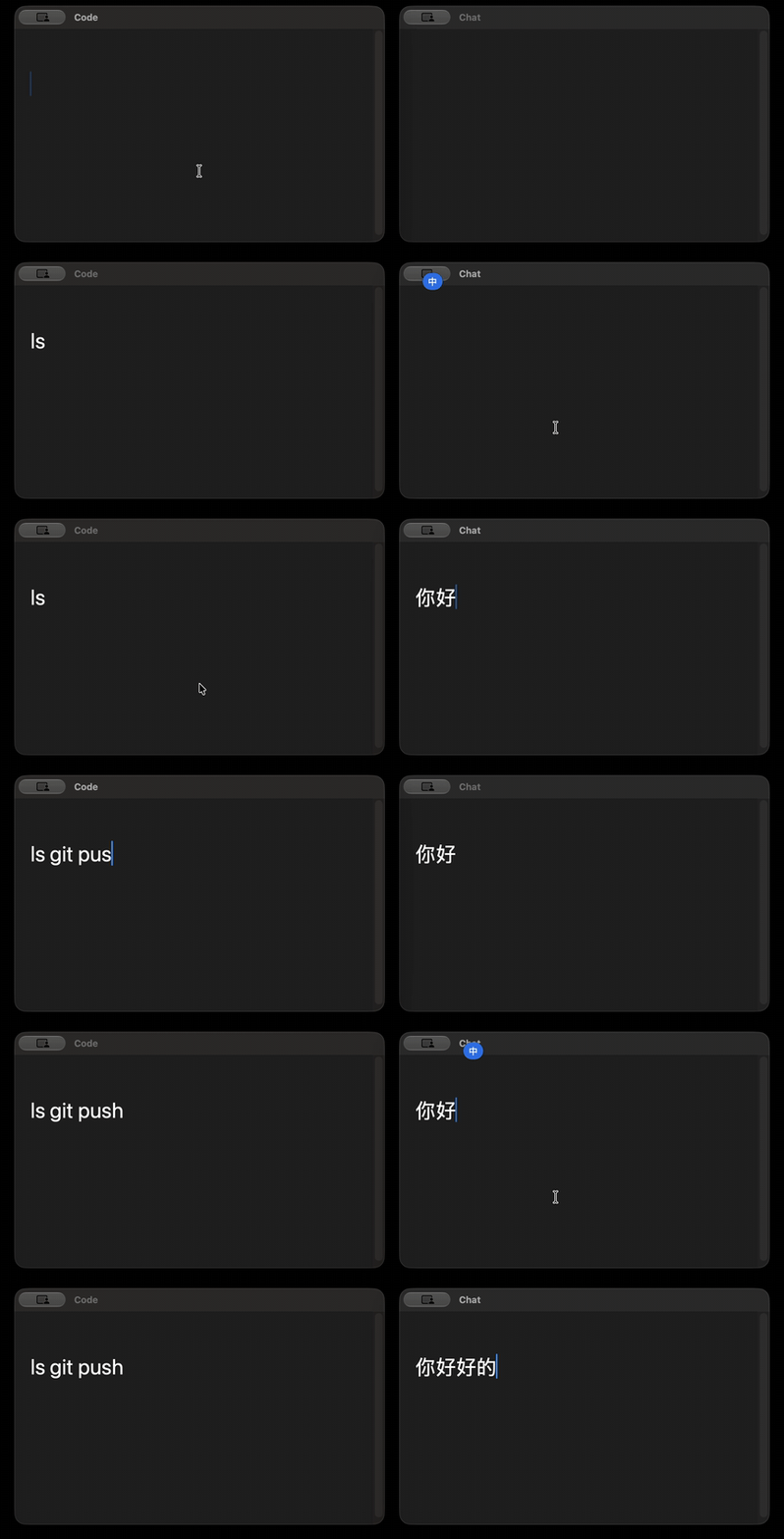
App Rules: a slot for each app
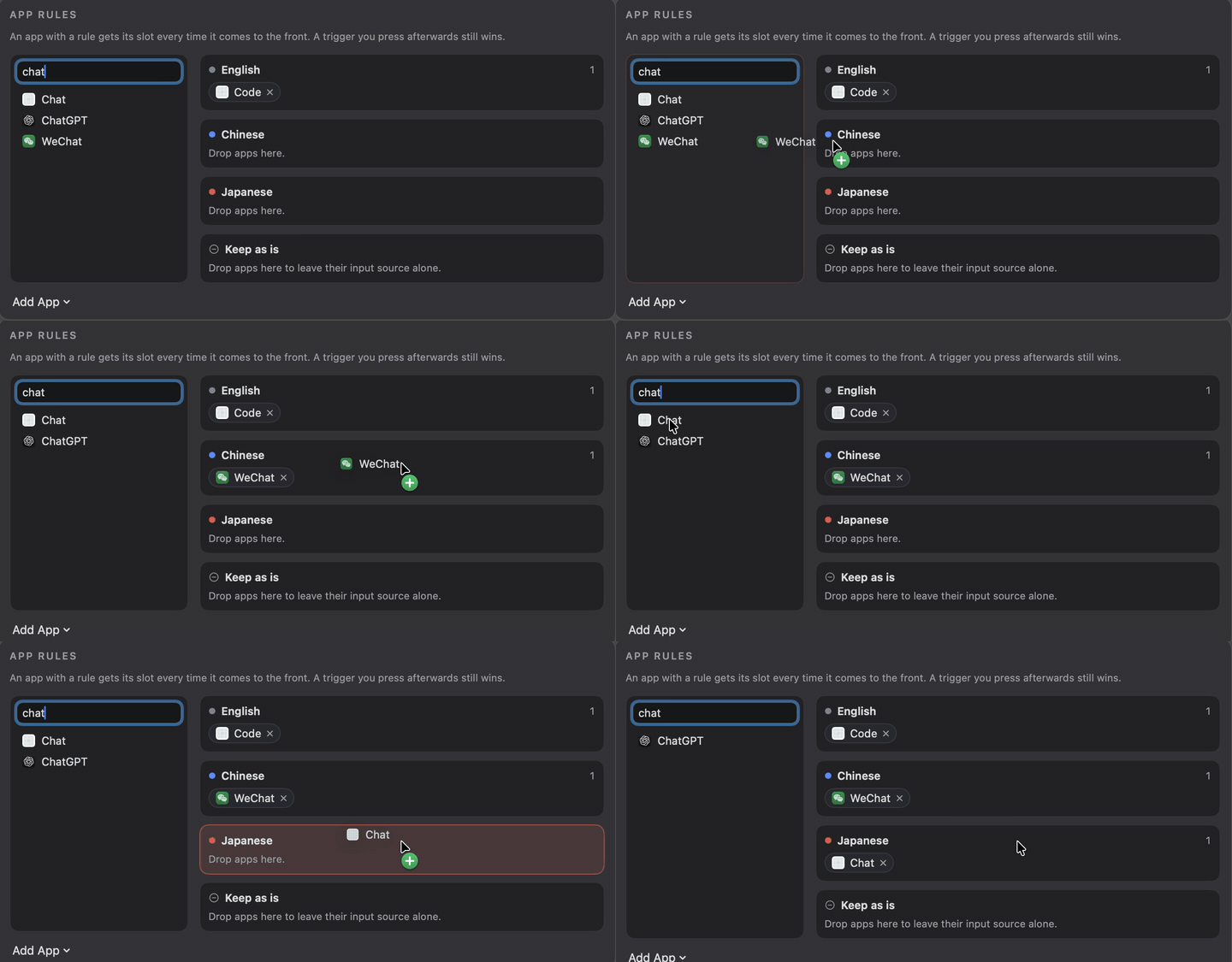
On the Apps page, drag an app from the list, Finder or the Dock onto a slot and it gets that slot every time it comes to the front. Drag it onto Keep as is and CmdIME leaves it alone. A trigger you press still wins.
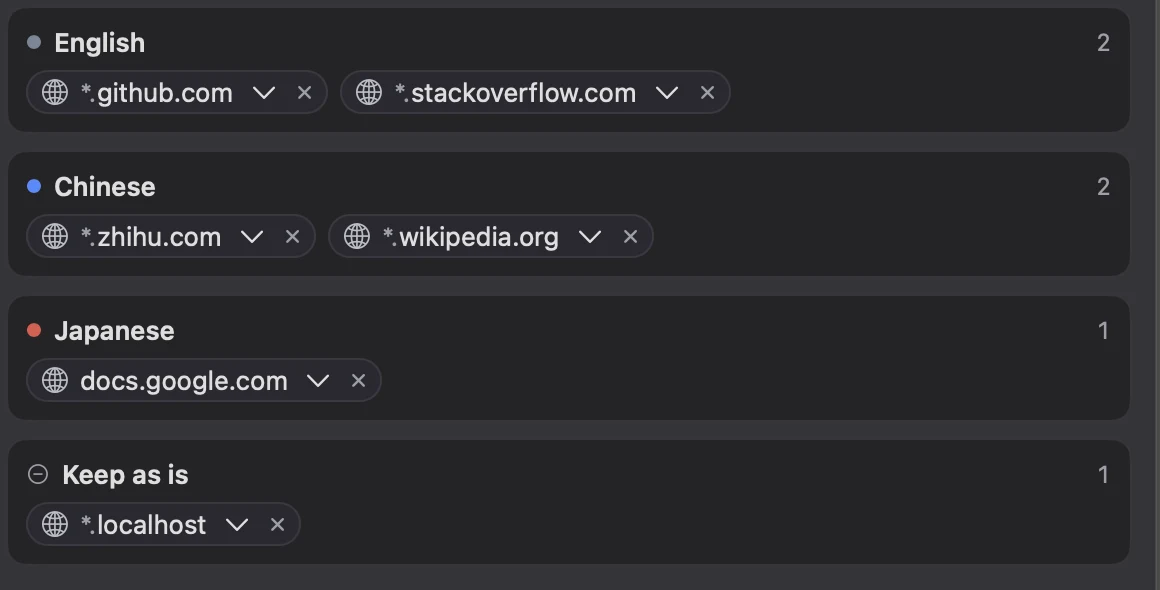
Website rules: a slot for each site
Give a website its own slot. While a page on github.com is in front, you are on English; the tab next to it can be on Chinese. A rule covers the site's subdomains unless you turn that off, and a trigger you press still wins.
Only the address, and none of it kept
CmdIME reads only the site address of the page in front and keeps none of it. It works in any browser that registers to open web links; switching was tested in Safari and Chrome.
Program rules: a slot for each program in the terminal
English at the zsh prompt, Chinese inside claude. Give a program its own slot by the command it is started with; while it runs in the terminal pane in focus you are on that slot, and the rule is applied again every time the pane comes into focus. A trigger you press still wins, and a program without a rule changes nothing.
Only the program's name
CmdIME reads only the name of the program running in the terminal, never what is on the screen. It works best in Herdr: there CmdIME follows every pane, also when you come back to one that is already running its program. In other terminals zsh reports the program through one line in .zshrc, and the switch happens only when a program starts or exits.
App Memory
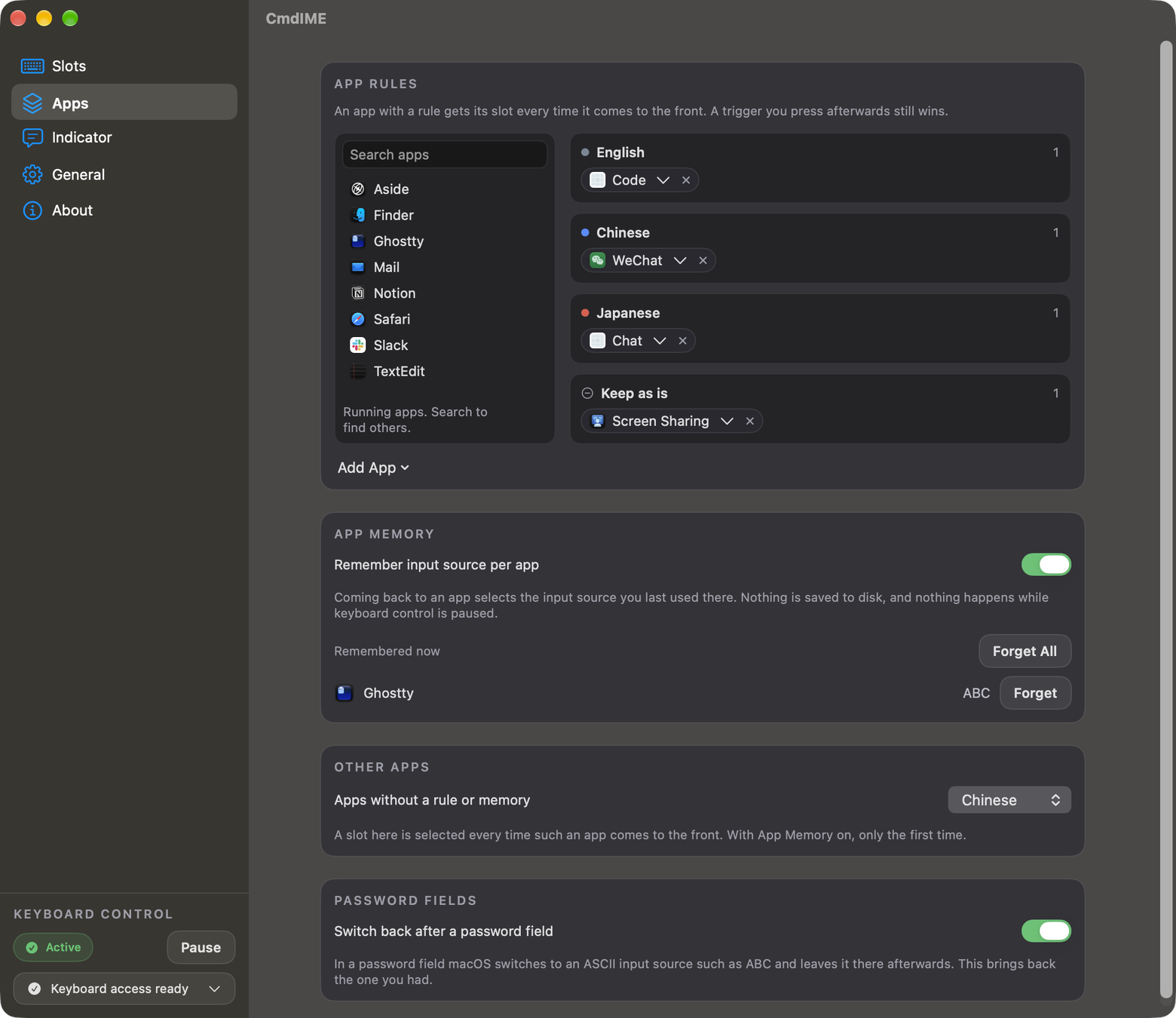
Let CmdIME remember the input source you last used in each app. Off by default, kept in memory only.
A default slot for other apps
Pick a slot for every other app.
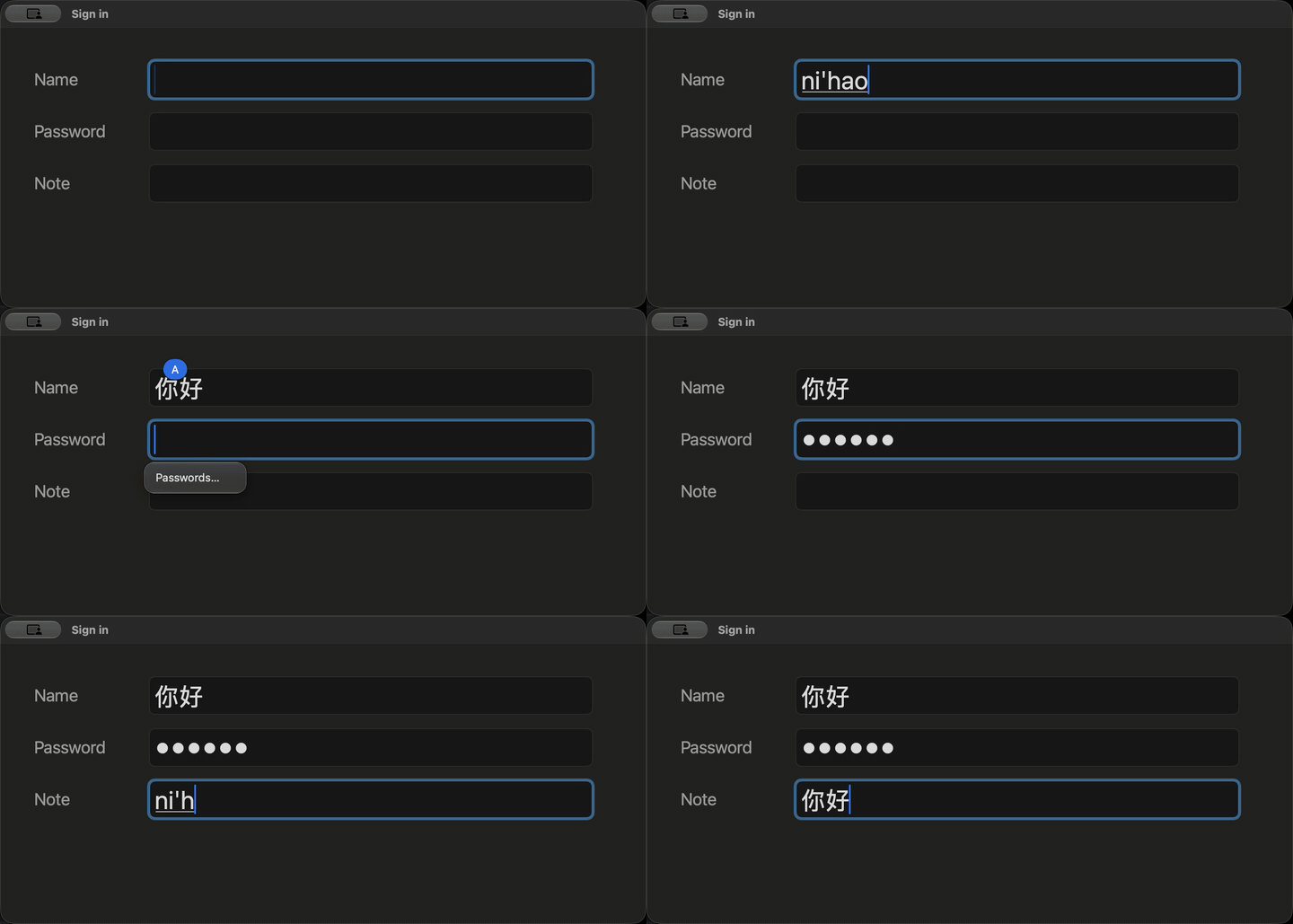
Your input source returns after a password field
macOS leaves ABC selected after a password field. CmdIME switches back to the input source you had before. On by default.
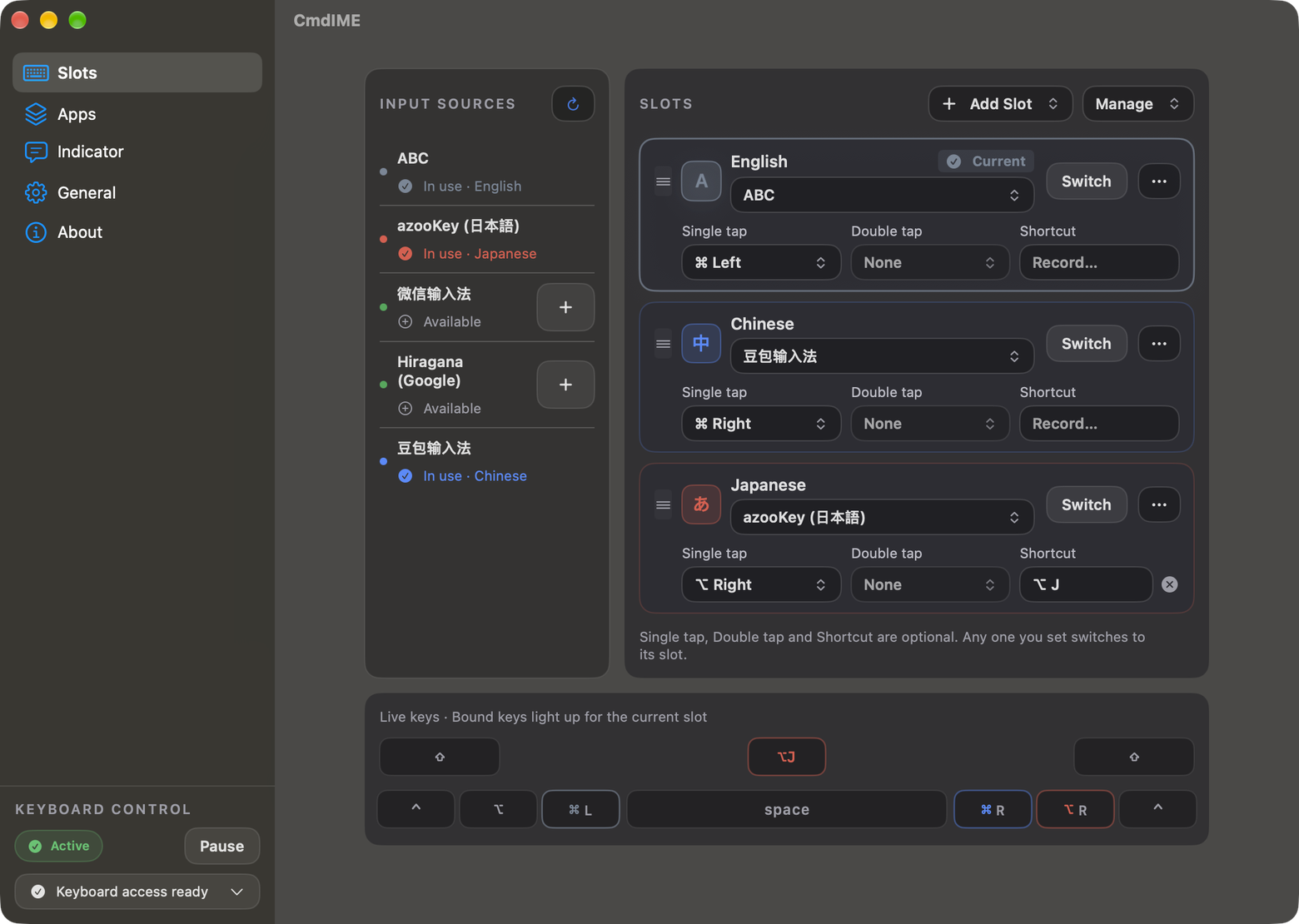
A slot board
Installed input sources on the left, your slots on the right. Drag a source in to add a slot, drag a handle to reorder, rename, color or remove a slot, and undo a removal. The list follows System Settings as you add or remove input sources.
Three optional triggers per slot
A single tap or a double tap of one of the eight modifier keys, and a shortcut such as Option+J. Set any of them; any one you set switches to that slot.
A switch indicator near the caret
Eighteen built-in themes, including Glass, Liquid Glass on macOS 26 and later, paper styles, a switcher that shows every slot, a badge that shrinks it to the glyphs, a mark that keeps only the source you switched to, and two Adaptive themes, plus your own themes and fonts. Every slot takes any color you pick, and the indicator can fill with it.
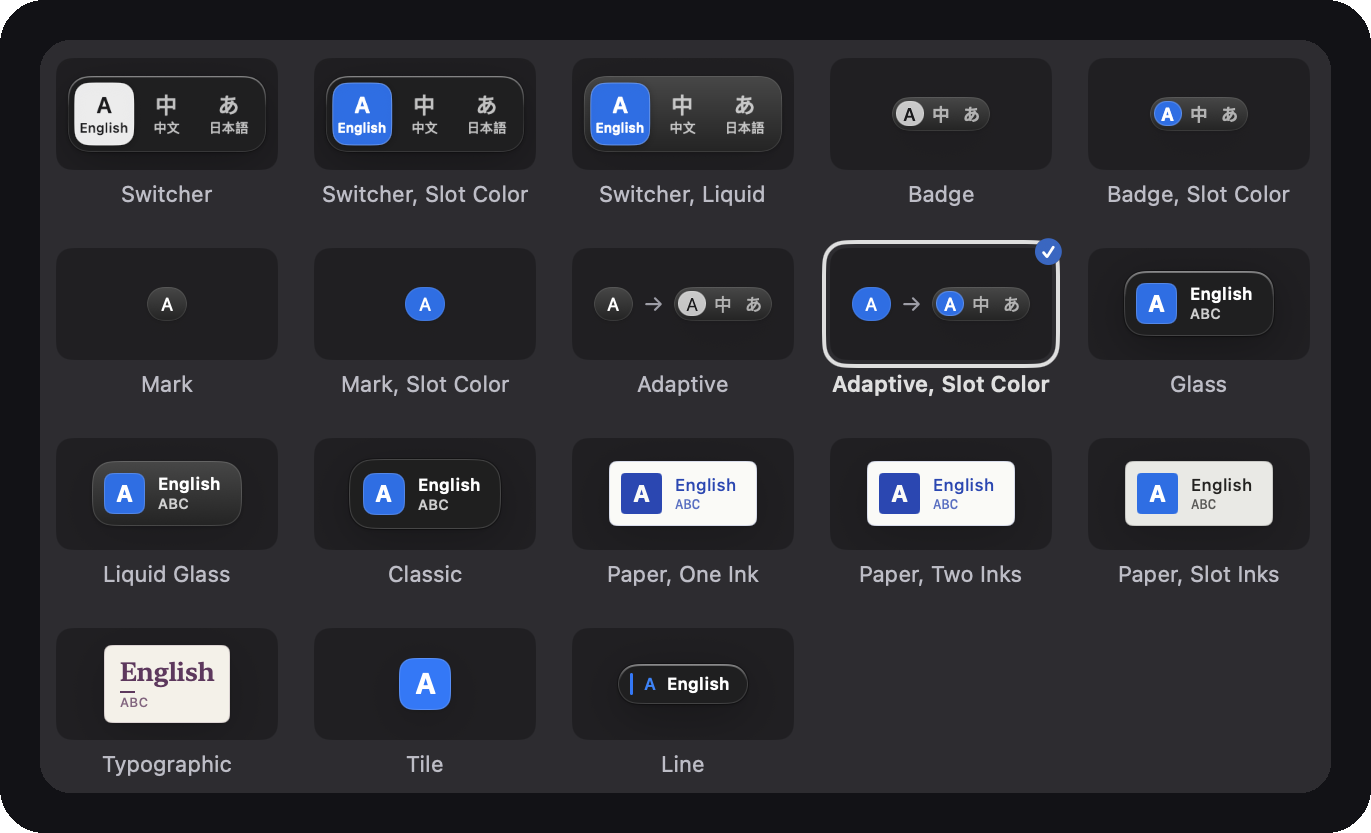
Adaptive: from a mark to the whole row
The two Adaptive themes show the mark for a single switch and widen into the badge row when you switch again while it is up or when you Peek.

An indicator for every switch
The bubble also shows when the input source changes through Control+Space, the Globe key or the menu bar, and optionally after an app switch. Hide it in chosen apps and set how long it stays.
Peek / Caps Lock
A Peek trigger shows the current input source without switching. An optional Caps Lock bubble shows when Caps Lock turns on or off.
One bubble per switch
macOS 14 and later draw their own small badge under the text cursor on every input source change, CmdIME's switches included. While the switch indicator is on, CmdIME hides that badge for your user account, so a switch shows one bubble; turning the indicator off, or General > Quit CmdIME, brings it back. Apps pick the change up as they relaunch, and logging out applies it everywhere. With the badge hidden, Control+Space shows the older list in the middle of the screen.

Settings you can move
Export your slots, triggers, App Rules, themes, fonts and activation recipes to a folder and import them on another Mac. Edits that keyboardctl or an editor makes to the config apply while CmdIME runs. Copy Diagnostics on About gathers what a bug report needs.
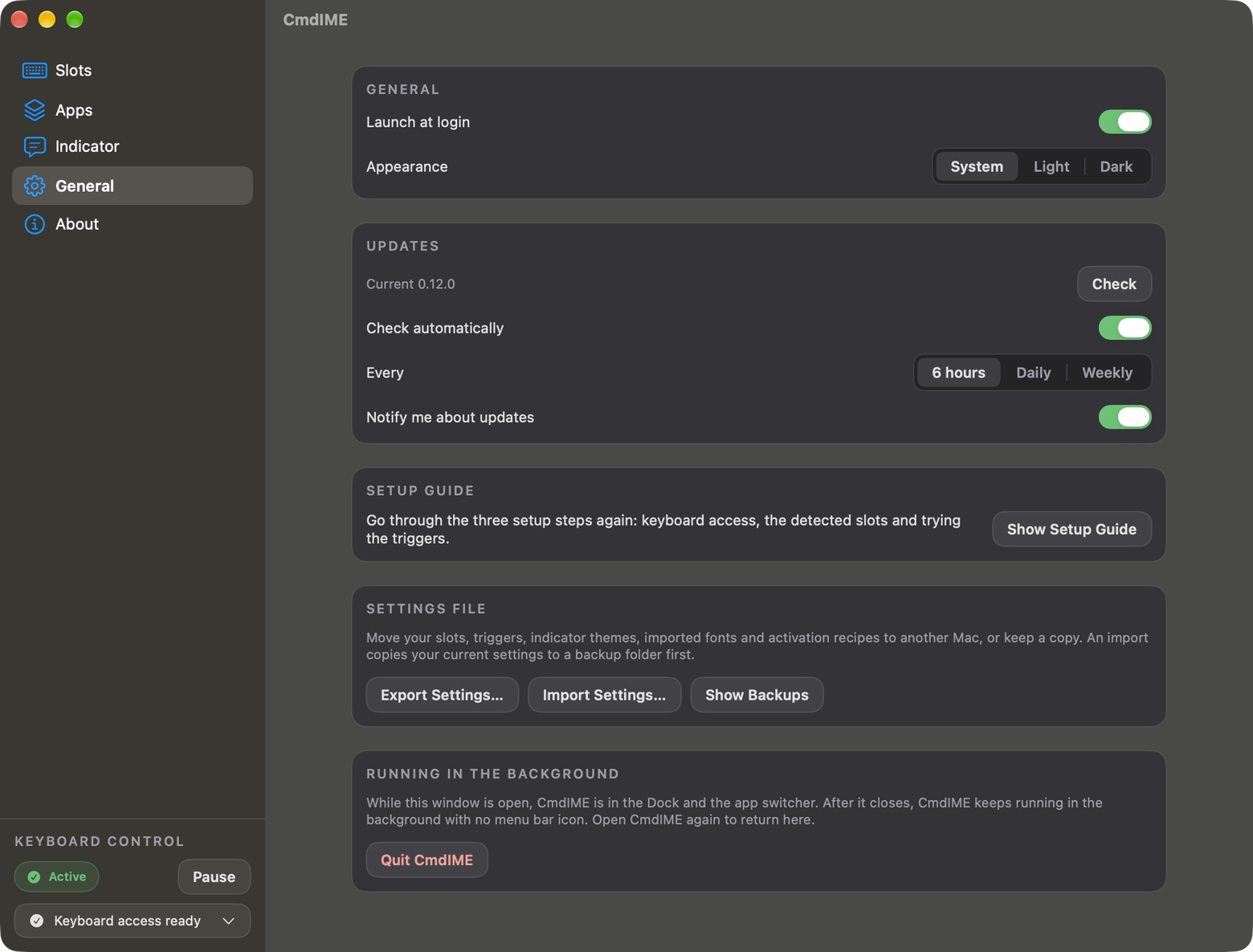
Updates from inside the app
A check every six hours by default, a summary of what changed beside Update Now, and an in-place install that keeps your permissions. CmdIME asks GitHub for the newest release (nothing else is sent), and Check automatically can be switched off in General.
A settings window that follows light and dark
Or stays on the one you pick.
Settings in English, Simplified Chinese and Japanese
The settings window follows the macOS language. To give CmdIME a language of its own, pick one in General > Language, or use System Settings > General > Language & Region > Applications.
keyboardctl
A command-line tool for scanning, binding, switching, App Rules, moving settings and diagnosing, plus the on-device reliability lab.
Troubleshooting
"CmdIME is damaged" or "Apple cannot check it for malicious software"
The app is not damaged. Preview builds are signed but not notarized, and a zip downloaded in a browser carries a quarantine flag, so Gatekeeper blocks the first launch. The "is damaged" message usually offers no Open Anyway. Either of these works:
- Delete the downloaded zip and app, then install with the one-line installer from Install, which does not go through the browser quarantine.
Or keep the downloaded app: move
CmdIME.appto/Applications, then remove the quarantine flag:xattr -dr com.apple.quarantine /Applications/CmdIME.app
If macOS shows "Apple cannot check it for malicious software" instead, System Settings > Privacy & Security may offer Open Anyway; removing the flag as above also works. Apple's documentation on Gatekeeper and Developer ID explains the checks.